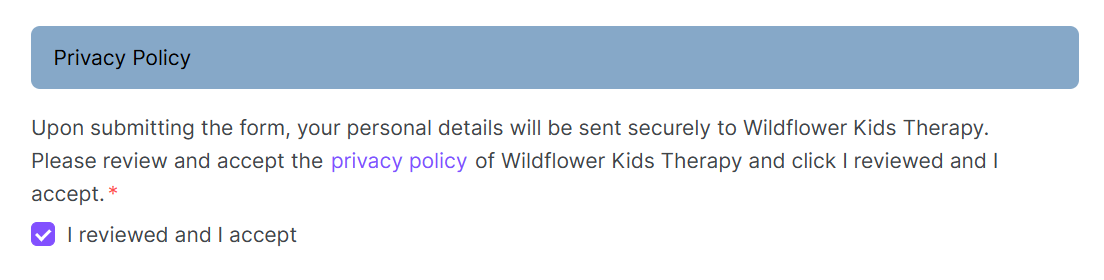
This one is straightforward as a Splose setup, and I've seen a lot of clinics overlook it.
A telehealth appointment goes in the calendar. Then somebody jumps into Teams or Zoom, creates a session, types in the client's email and sends it. In some clinics that's the clinician. In others it's admin, making the meeting and sending it out separately from the confirmation Splose already sent. Then on the day the clinician is scrambling to find where that link ended up, two minutes before the session starts.
It happens because most of us are still using the default appointment templates Splose ships with.
Instead of thinking of the meeting link as something you send, think of it as something the booking already knows. Splose has native integrations with Teams and Zoom, and when a telehealth appointment is created it can generate the link for that specific session and put it in the confirmation for you.
Three things have to be true for that to happen, and it's the middle one that catches people.
The service has to have telehealth selected. Once an appointment for that service is created, the link gets generated.
The clinician has to have connected their own account. This is per person, not per clinic. Under Details there's an Integrations section, and each clinician goes in and connects their own Teams or Zoom. If I book an appointment for my wife, the meeting is created on her account, not mine, because the appointment is with her. Which is exactly what you want, and also why one clinician who never did the setup will quietly have no link on their bookings.
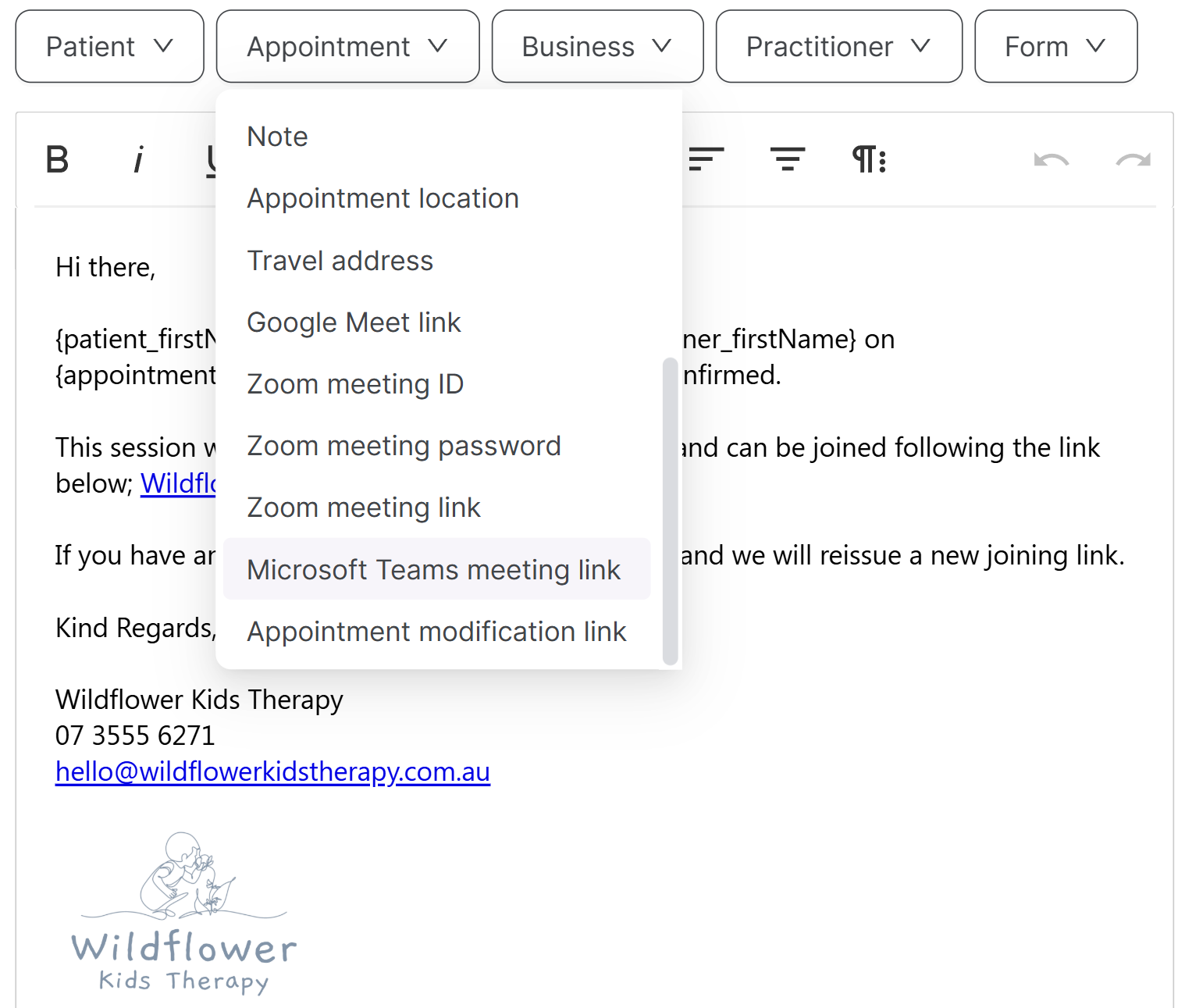
The appointment notification template has to carry it. Open the confirmation message template, and under the Appointment placeholders there's a Microsoft Teams link, a meeting ID link, the lot. Put it where you want it and it resolves to the join link for that particular session.
We went one step further and made dedicated telehealth confirmations and reminders, separate from the in-person ones, so the wording can say what's actually happening.
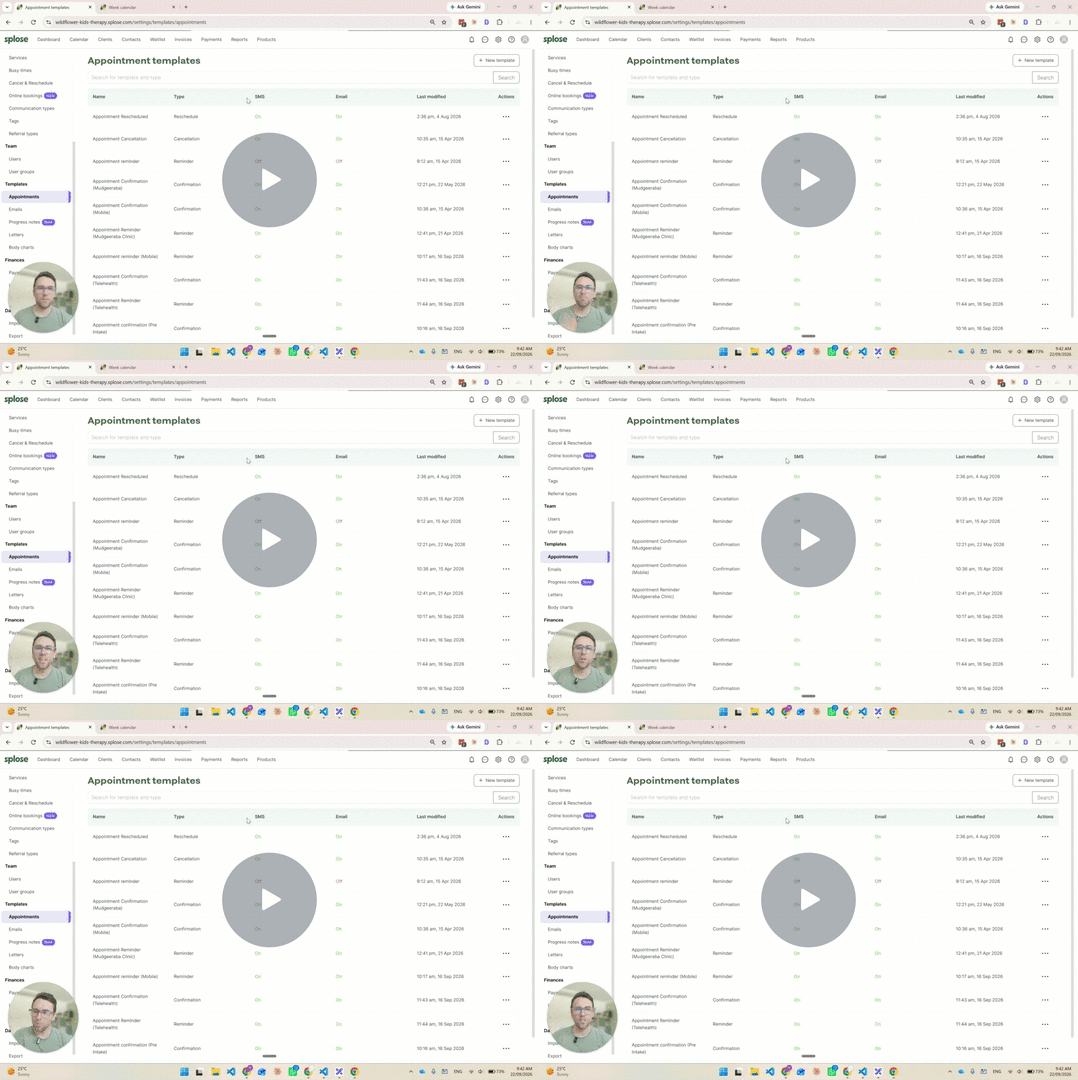
Two small decisions in there worth borrowing. The link goes in the email, not the text. You can put it in the SMS, but meeting links are long, they push the message into a second or third segment, and each one costs. Ours says check your email for the Teams joining link and leaves it at that. And in the email the link sits behind the words "join here", because the raw version is teams.microsoft.com/join/5679BYZ............ whatever it is, and nobody needs to look at that.
When the family gets the confirmation they click, Teams opens. Our team open the appointment on the day, click join, and everyone lands in the same meeting. Happy days.
The reminder is the second half, and honestly the half I need. I'm generally pretty well organised, but I'm terribly forgetful. If the session was booked two weeks ago the link is saved somewhere, and I'll guarantee you I have not found it. So the reminder that goes out three days before carries the link again. Same placeholder, same session, no hunting. It's the same idea as putting the intake form in the confirmation, just with a different thing the booking hands over.
One honest limit. The link only generates where that clinician's integration has been connected, so this is a setting that has to be done by each person, once, and it's worth checking it's actually been done rather than assuming.
Go and open your telehealth confirmation template and look for the link placeholder. If it isn't there, that's the whole job, and it's a ten minute one.
Where: Settings, then Details, then Integrations, for each clinician to connect Teams or Zoom. Settings, then Services, to select telehealth on the specific service or services. Settings, then Appointment templates, to add the meeting link placeholder. It's found under "Appointment". Worth doing both the confirmation and the reminder message.
Common questions
Yes. When a telehealth appointment is created for a clinician who has connected their Teams or Zoom account, Splose generates the meeting link for that session. Add the link placeholder from the Appointment menu to your confirmation and reminder templates and it fills in automatically.